Question :
How to deploy Flask Python in cPanel?
Applicable to :
- cPanel Shared Hosting Beginner
- cPanel Shared Hosting Plus
- cPanel Shared Hosting Pro
- cPanel Shared Hosting Max
Answer :
Go to your cPanel first and login. Please make sure you request terminal shell to our staff by email to support@exabytes.co.id and ask to activate terminal ssh.
It should be something like this :
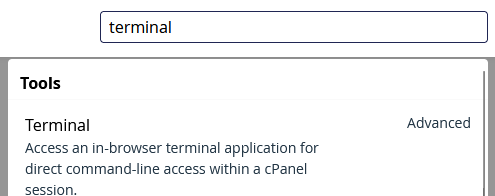
Okay move on, we launch Setup Python App from search Dashboard.
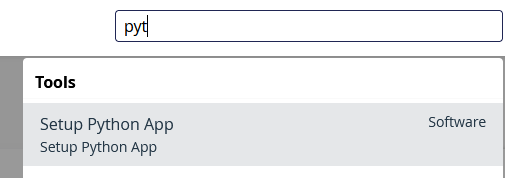
And then click Create Application.
Now let's change python version into recommended one.
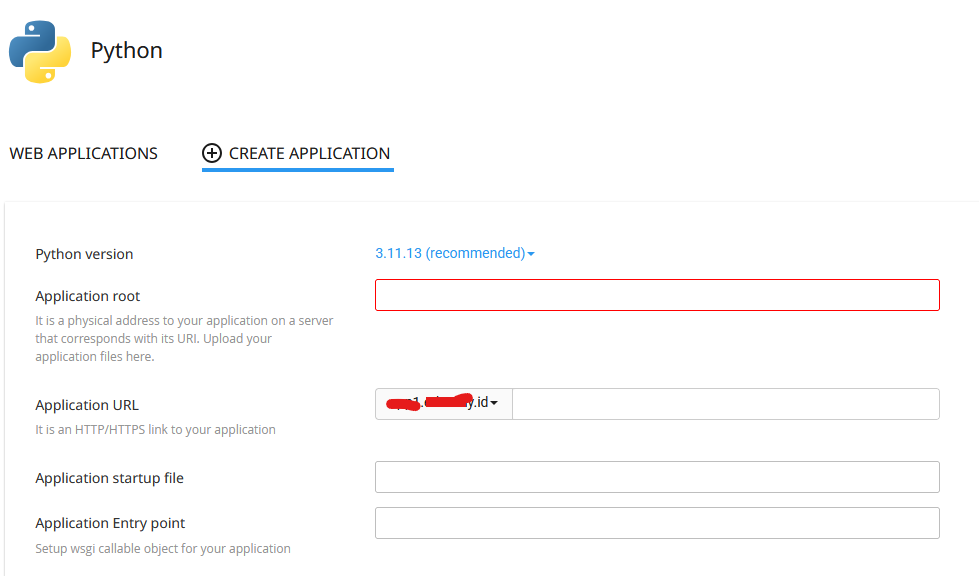
There are some fields you can fill :
- Application root : Fill as your application folder NOT public_html, ie app.
- Application URL : The address name where your project can be accesssed.
- Application startup file : Leave it blank
- Application Entry point : Leave it blank
- Click Create.
Once you click Create, you will be redirected to its application and you can see the system is filling itself.
Now go to terminal and enter the virtual environment. The instruction can be see here, simply copy & paste from browser and paste into terminal:

Or with format :
source /home/to/apps/virtualenv/version/bin/activate && cd /path/to/dir
After that continue to install flask via pip.
((app:3.11)) [app1eth0@sc131 app]$ pip install flask
Collecting flask
  Downloading flask-3.1.2-py3-none-any.whl (103 kB)
     ━━━━━━━━━━━━━━━━━━━━━━━━━━━━━━━━━━━━━━━━ 103.3/103.3 kB 3.9 MB/s eta 0:00:00
Collecting blinker>=1.9.0 (from flask)
  Downloading blinker-1.9.0-py3-none-any.whl (8.5 kB)
Collecting click>=8.1.3 (from flask)
  Downloading click-8.3.1-py3-none-any.whl (108 kB)
     ━━━━━━━━━━━━━━━━━━━━━━━━━━━━━━━━━━━━━━━━ 108.3/108.3 kB 6.7 MB/s eta 0:00:00
Collecting itsdangerous>=2.2.0 (from flask)
  Downloading itsdangerous-2.2.0-py3-none-any.whl (16 kB)
Collecting jinja2>=3.1.2 (from flask)
  Downloading jinja2-3.1.6-py3-none-any.whl (134 kB)
     ━━━━━━━━━━━━━━━━━━━━━━━━━━━━━━━━━━━━━━━━ 134.9/134.9 kB 5.6 MB/s eta 0:00:00
Collecting markupsafe>=2.1.1 (from flask)
  Downloading markupsafe-3.0.3-cp311-cp311-manylinux2014_x86_64.manylinux_2_17_x86_64.manylinux_2_28_x86_64.whl (22 kB)
Collecting werkzeug>=3.1.0 (from flask)
  Downloading werkzeug-3.1.4-py3-none-any.whl (224 kB)
     ━━━━━━━━━━━━━━━━━━━━━━━━━━━━━━━━━━━━━━━━ 225.0/225.0 kB 8.2 MB/s eta 0:00:00
Installing collected packages: markupsafe, itsdangerous, click, blinker, werkzeug, jinja2, flask
Successfully installed blinker-1.9.0 click-8.3.1 flask-3.1.2 itsdangerous-2.2.0 jinja2-3.1.6 markupsafe-3.0.3 werkzeug-3.1.4

[notice] A new release of pip is available: 23.1 -> 25.3
[notice] To update, run: pip install --upgrade pip
Now flask has been installed but we got notice whether wish to upgrade pip. You may upgrade later.
Now go to your root application. In this case our name application is app.
Create a new file called ini.py from your terminal
nano ini.py
And then fill with this script.
from flask import Flask
app = Flask(__name__)

@app.route('/')
def hello_world():
    return 'INI TEST SAJA FLASK'
Ok done.
Now let's modify a file called passenger_wsgi.py, before we do that do backup first.
cp -p passenger_wsgi.py passenger_wsgi.py-old
And then remove all existing rows passenger_wsgi.py and replace only this line.
from ini import app as applicationWhy we use ini? That's because we previously create ini.py for a test file. Therefore, define ini as app application.
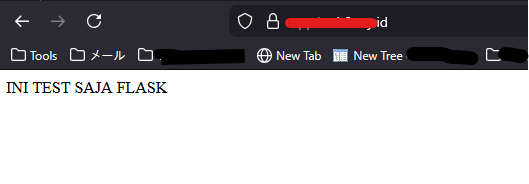
Now restart the application from cPanel interface. The output should be like this, and your app is online.