
Managed DNS allows you to manage DNS records like A, MX, CNAME, TXT, and others Directly from the client area.
Steps to Add / Manage Domain DNS Zone
- Login to Client Area ( https://billing.exabytes.co.id/clientarea.php )
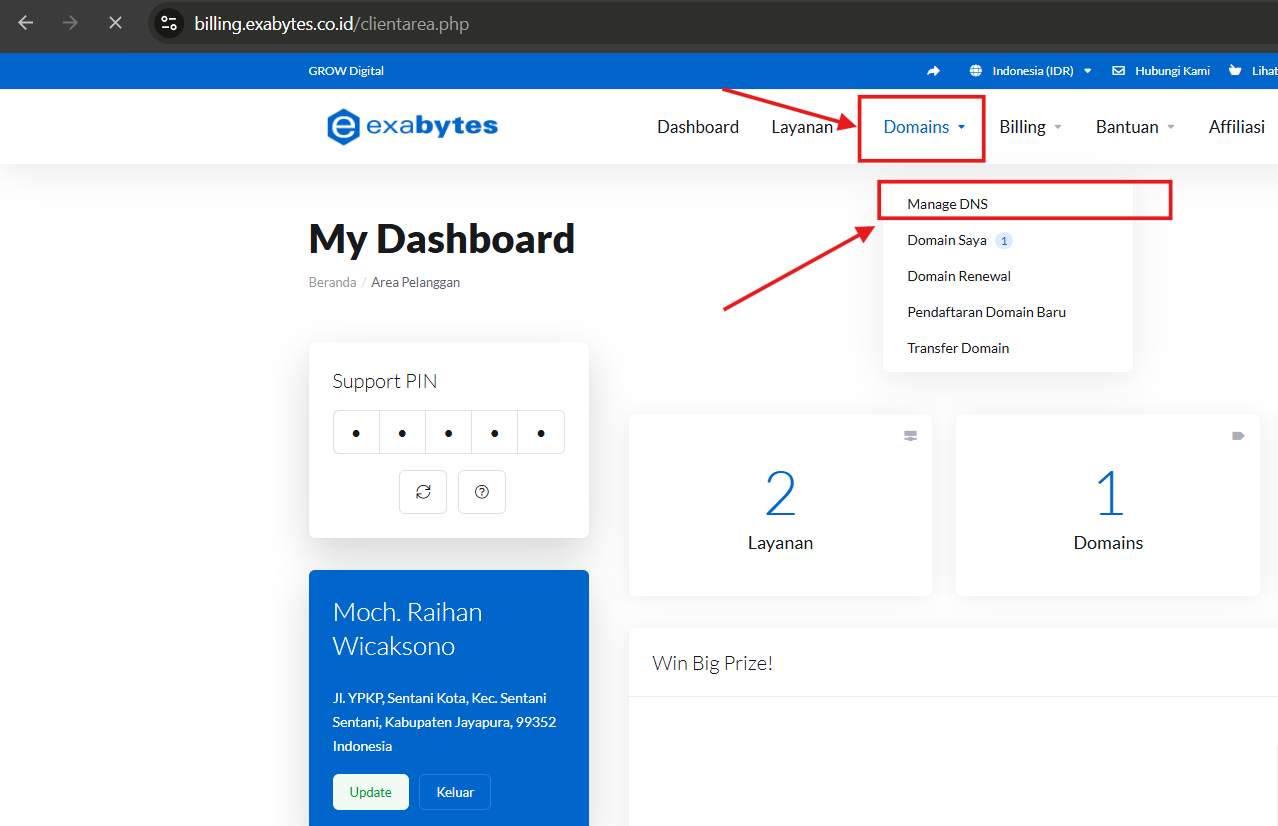
- Go to the menu Managed DNS
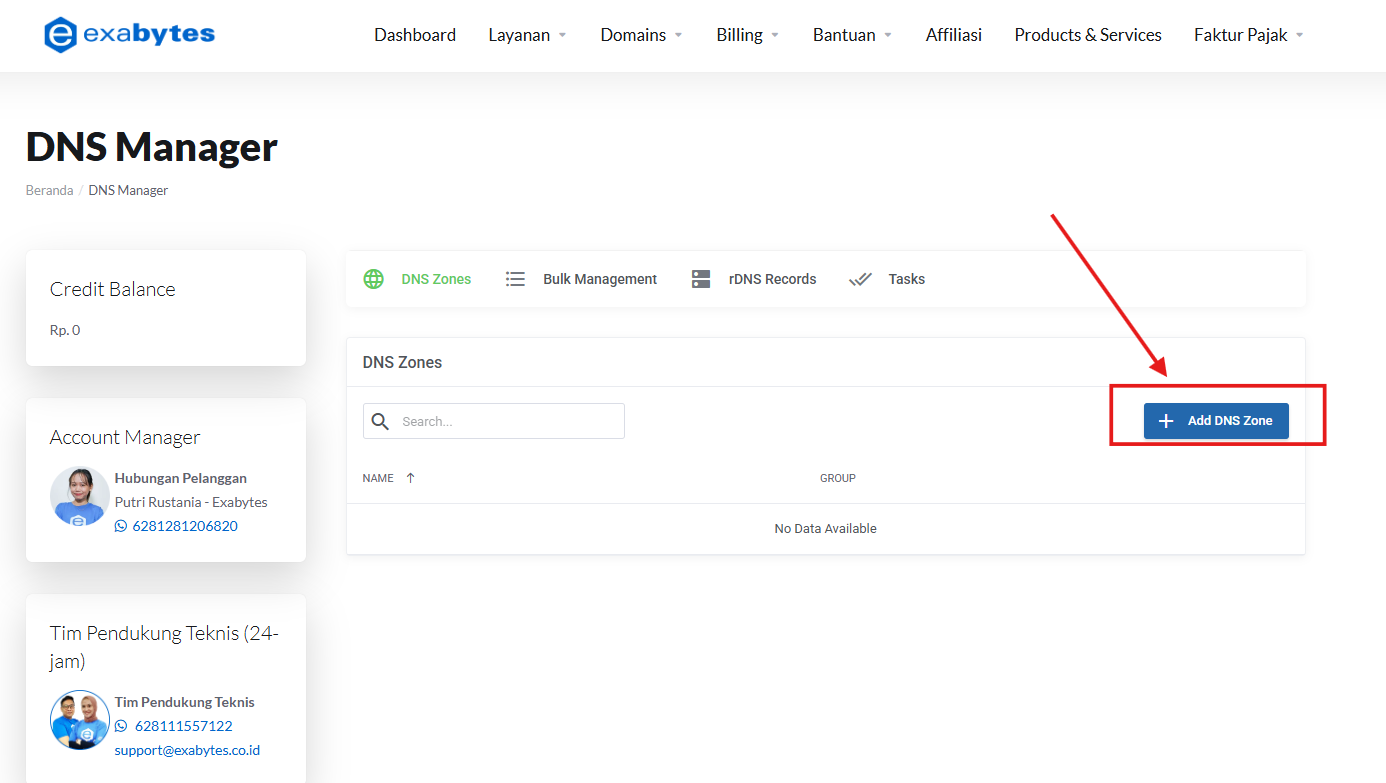
- Click "add DNS Zone"
- In this guide will be exemplified if it will manage DNS r1-tech.my.id through the client area:
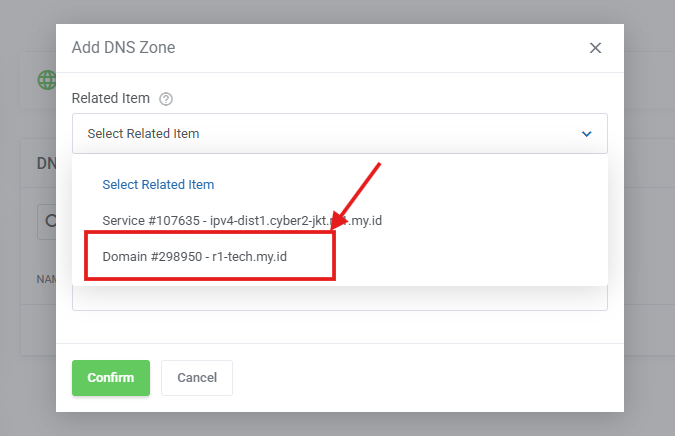
Select the related item with the selected domain name
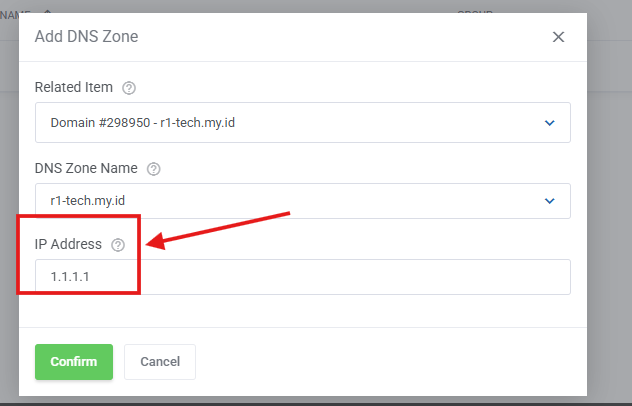
Enter the "IP Address" where the domain will be pointed.
If it does not exist, then it can fill in 1.1.1.1 (For Blogspot / Google Site / Necessity setup that does not include a specific A record)
If so, click Confirm.
5. "New zone has been created successfully" notification will appear -- Continue by clicking the pencil button to enter the DNS configuration.
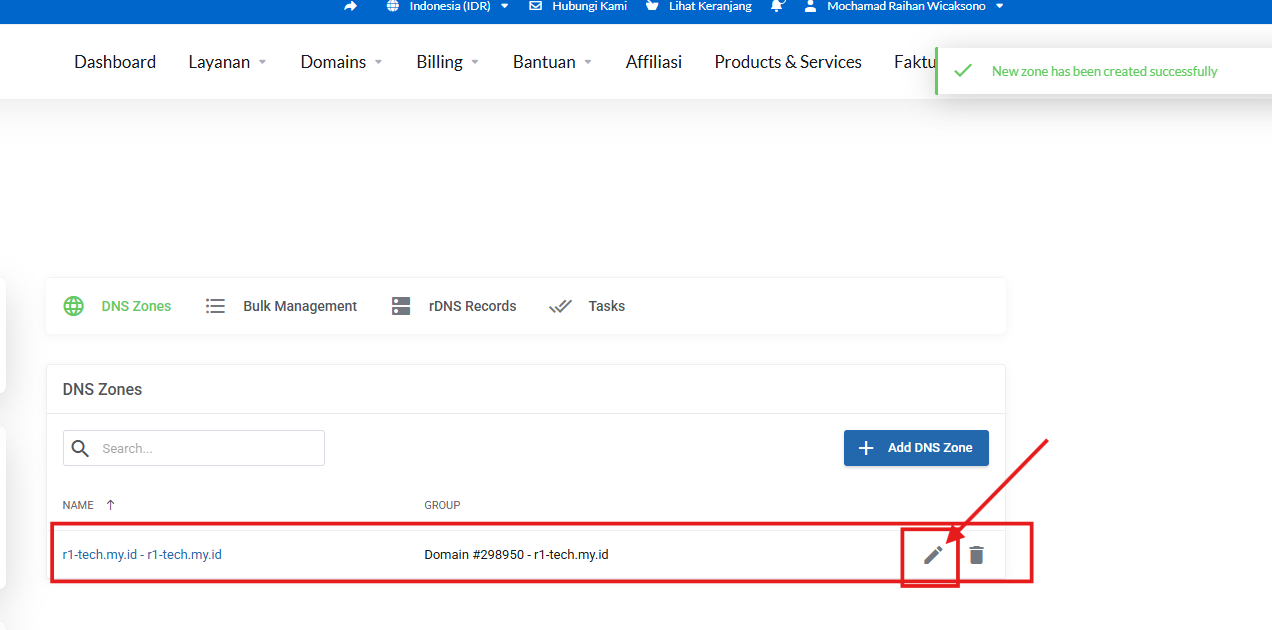
- Add / change records to your customize needs:
- A Record
- MX Record
- CNAME
- TXT, dll
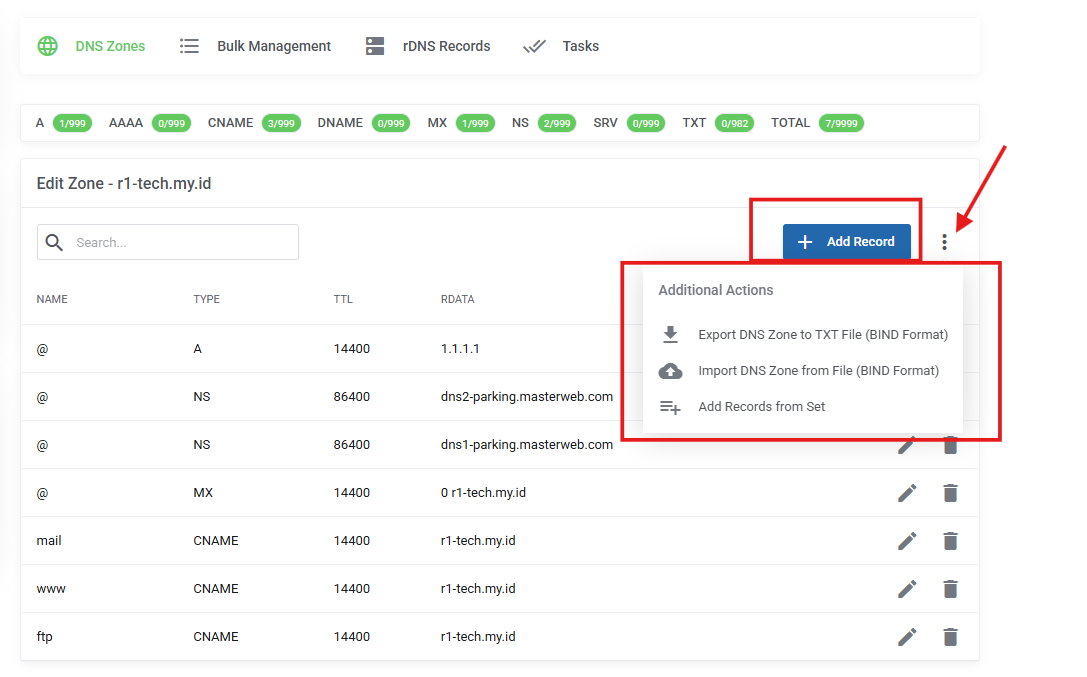
You can also import DNS Zone from BIND file or export DNS later.
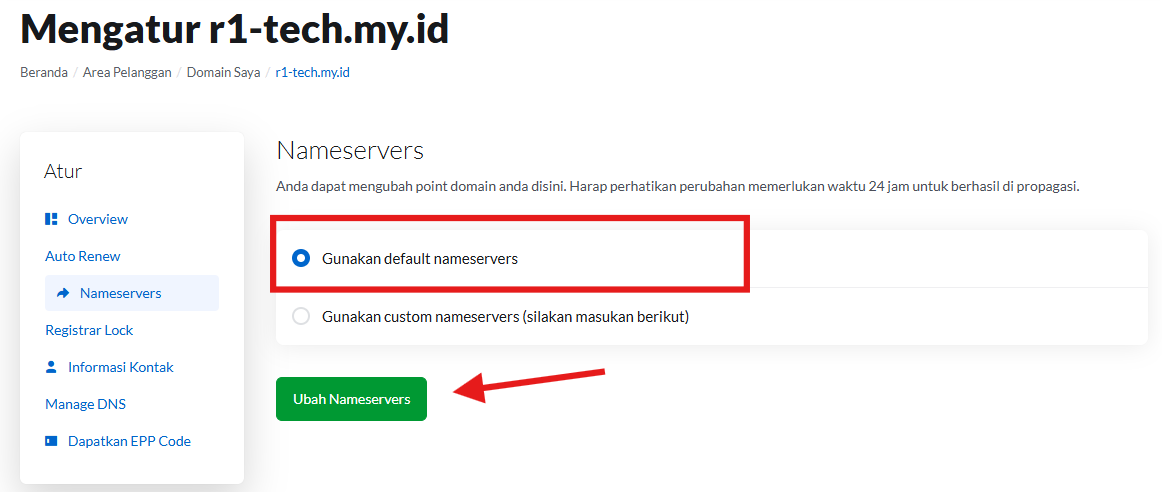
Important: Nameserver Settings
Make sure your domain is already using the following nameservers for Managed DNS to work:
dns1-parking.masterweb.com
dns2-parking.masterweb.com
*Change it by selecting: Default Nameserver
- Navigate through menu: Domain → Manage Nameserver / Atur Nameserver
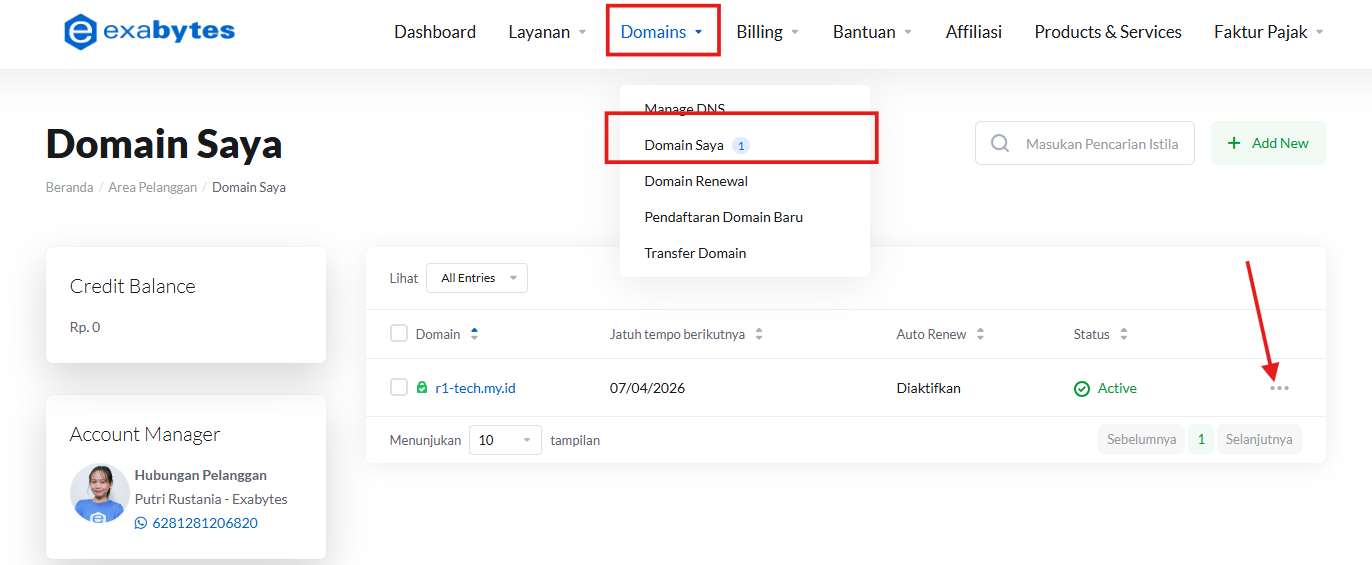
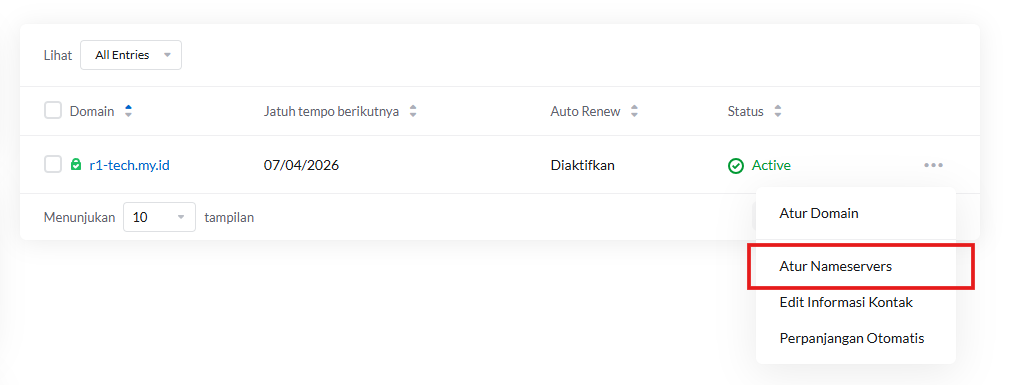
Note
- DNS changes require propagation time (± 5 minutes - 24 hours)
- Remove dummy IP (1.1.1.1) if previously used