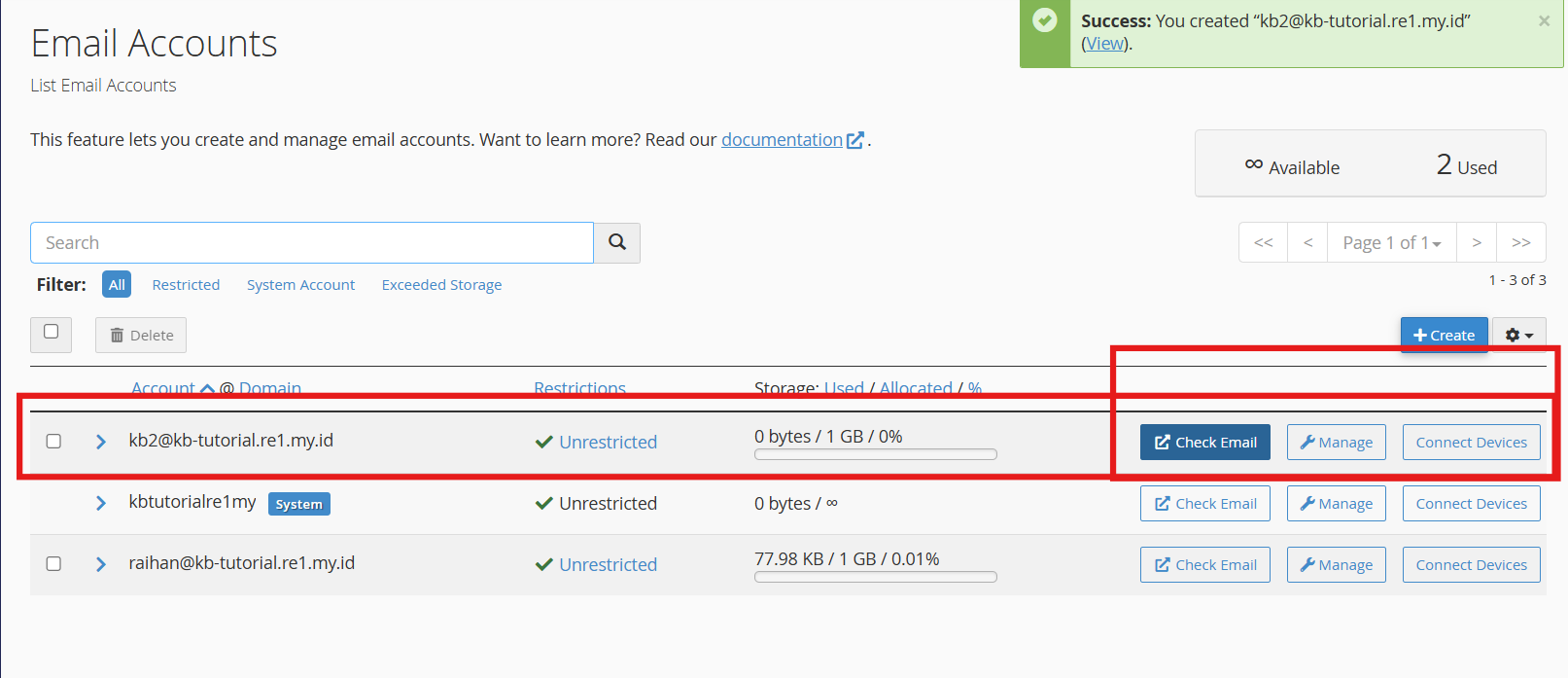
This guide explains the practical steps for creating and configuring a professional email account using the Exabytes latest cPanel interface.
1. Log in into your domain cPanel: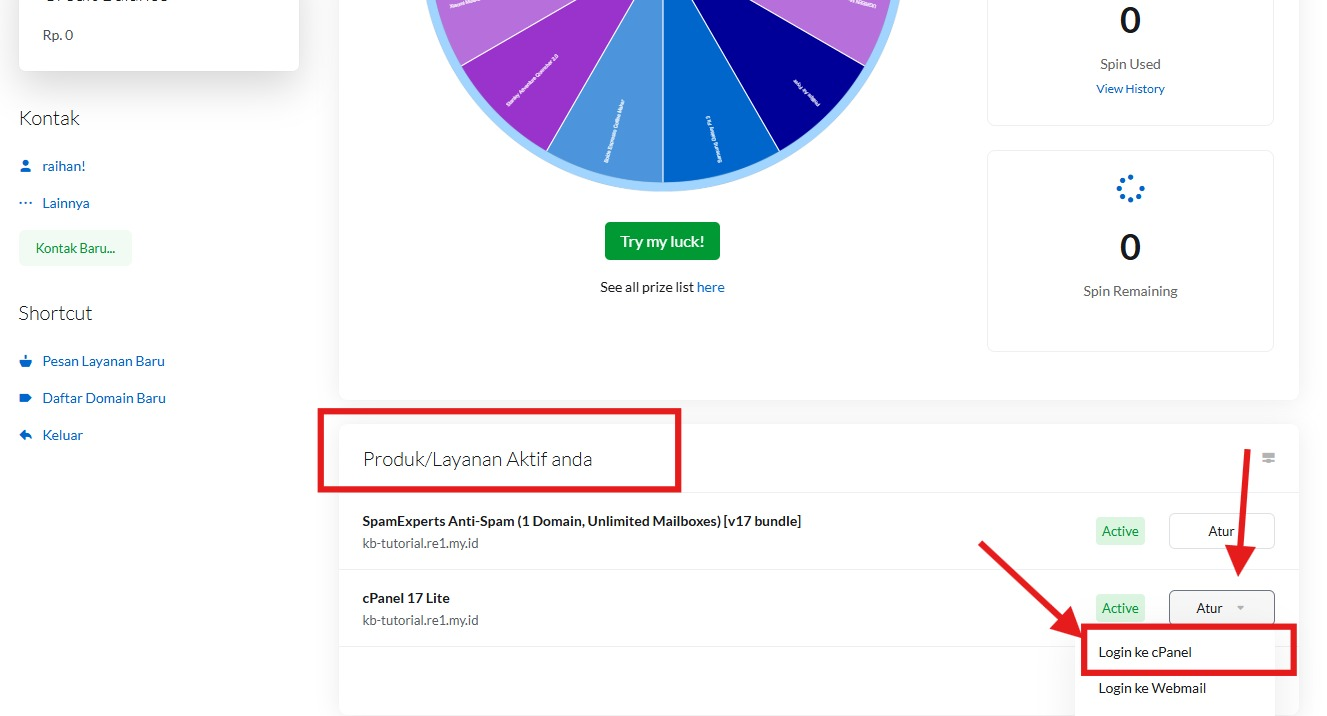
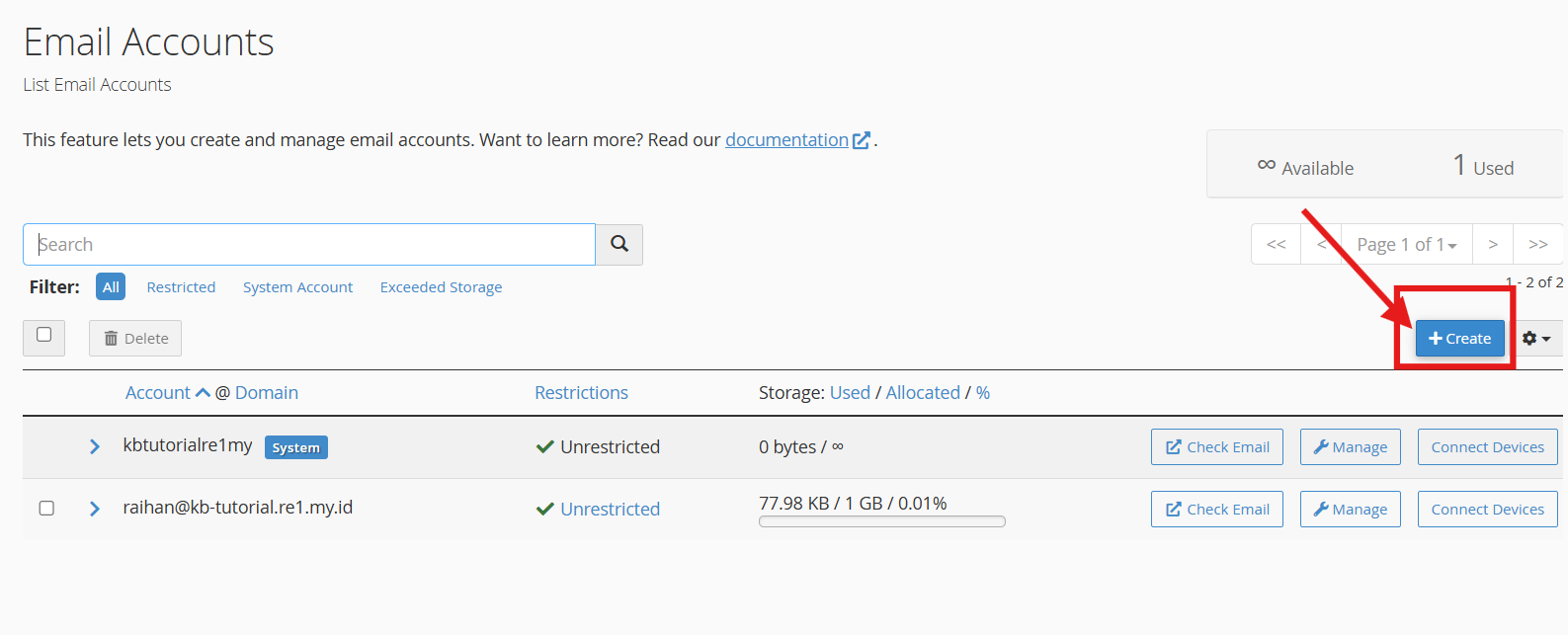
2. Navigate and click 'create'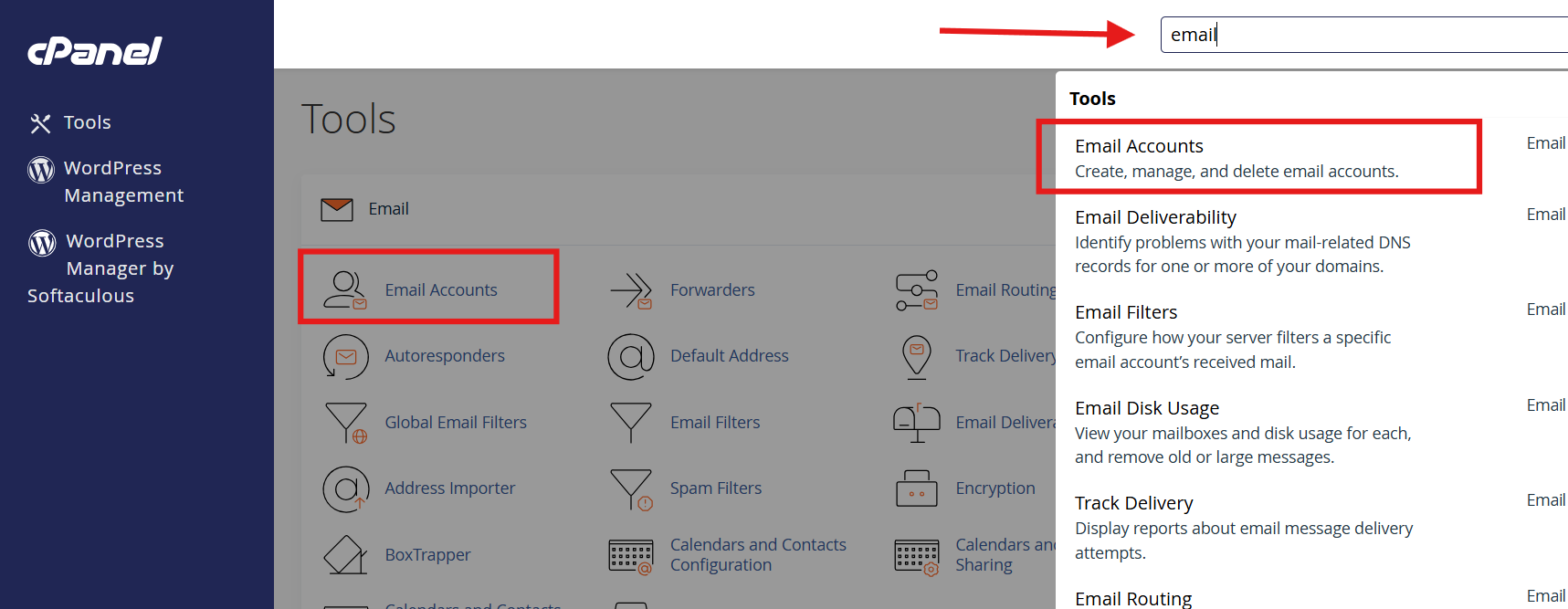
3. Fill out the details as follows:
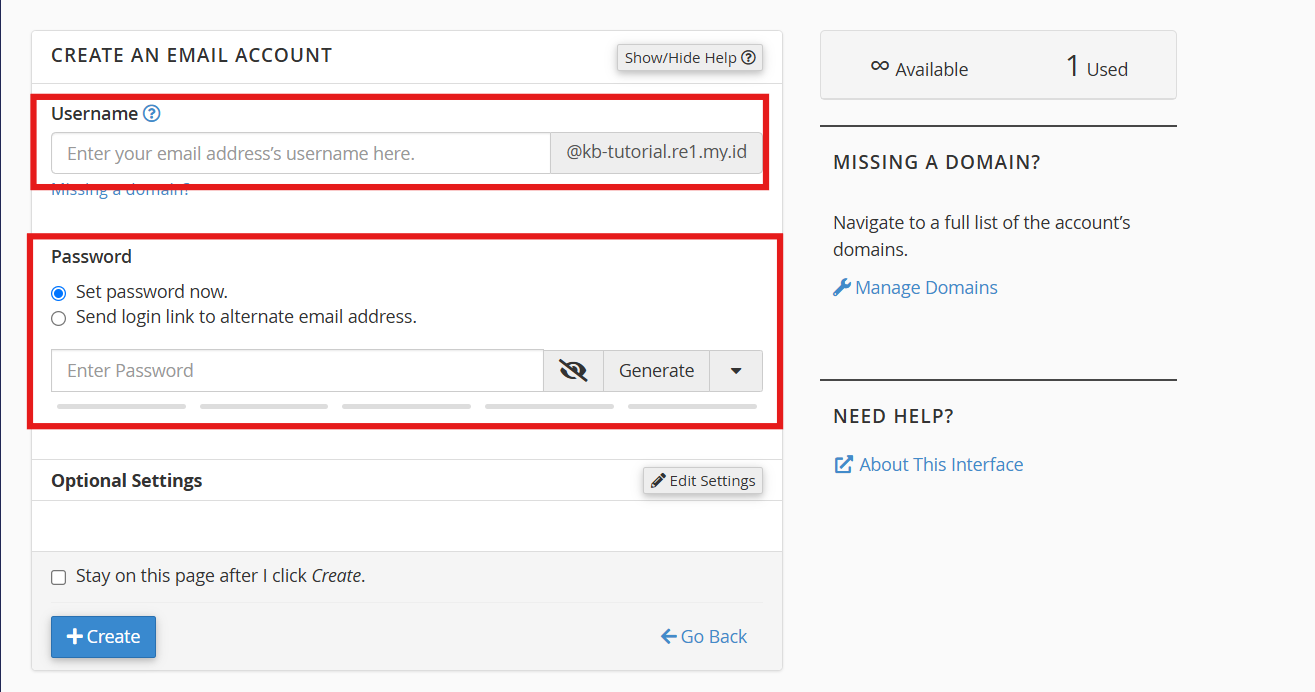
Username: The field to enter the email username (such as
adminorperson) that will be combined with your domain.Password: The section for setting the password, where you can choose to enter it directly (Set password now), send a login link to an alternate email address, or use the Generate button to create a secure password.
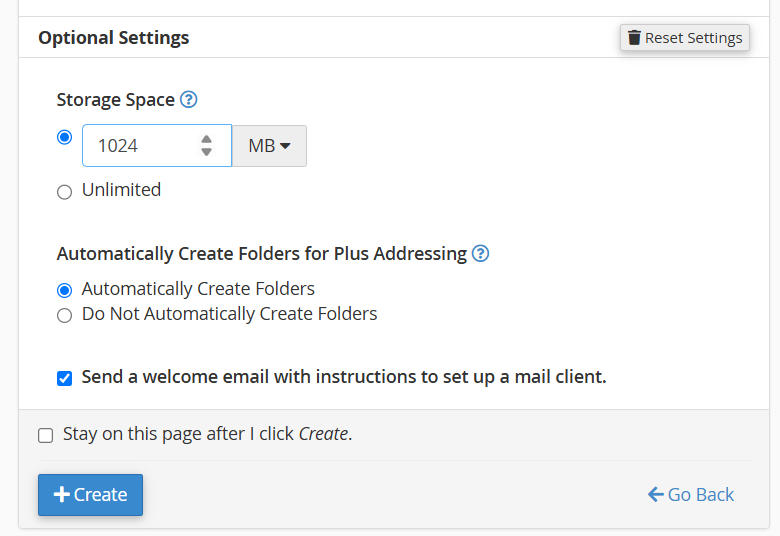
(OPTIONAL) Edit Settings Button: Used to expand and display the hidden optional settings.
Storage Space: Sets the mailbox storage quota (in MB, GB, or selecting the Unlimited option).
Automatically Create Folders for Plus Addressing: Determines whether cPanel should automatically create folders when incoming emails use the plus (
+) format.- Send a welcome email with instructions to set up a mail client: Automatically sends a welcome email containing mail client configuration instructions to the new account.
Once all set, click the plus button 'create' to proceed with the account creation.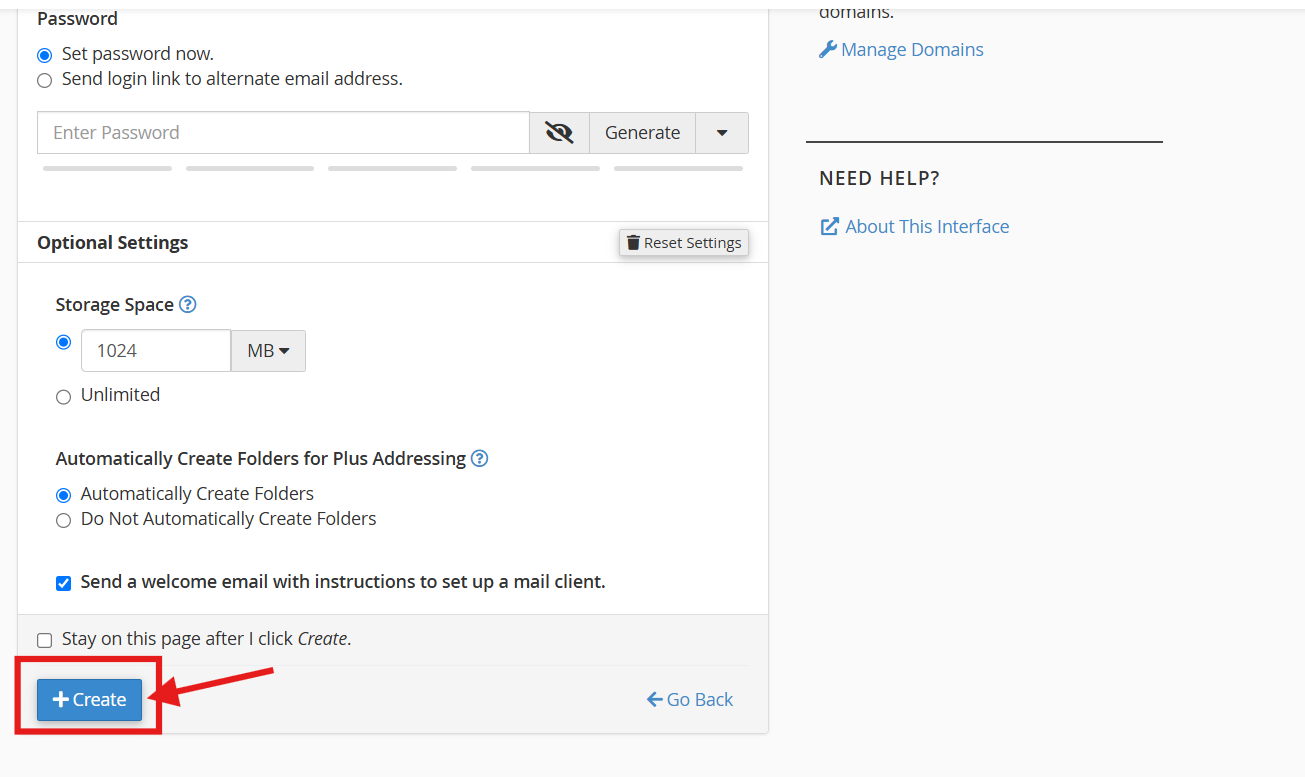
4. You might now check/login into the email account, or manage its settings or configuration.